6 Simple Godot Shader Tricks That Make Your 2D Game Look Professional
White flash on hit, sprite outlines, dissolve effects, and more. Six shader techniques you can add to your 2D game in an afternoon.
You have solid gameplay. Your sprites look good. But something feels flat. The attacks lack punch. The environment feels static. Enemies just disappear when they die.
The fix is almost always shaders. Not the complex, math-heavy kind. Simple fragment shader tricks that take an afternoon to implement and instantly make your game feel more polished.
Here are six effects used by games like Dead Cells, Hollow Knight, and Celeste that you can add to your own project today.
1. White Flash on Hit
This is the single most impactful visual effect you can add. When an enemy takes damage, every pixel of the sprite turns white for 1 to 2 frames. It’s fast, it’s punchy, and it gives the player instant feedback that their attack connected.
How it works: The fragment shader mixes the original sprite color with pure white based on a uniform float. When the float is 1.0, every pixel becomes white. When it’s 0.0, the sprite renders normally. Your game code sets it to 1.0 on hit and fades it back to 0.0 over a few frames.
// Godot (canvas_item shader)
shader_type canvas_item;
uniform float flash_amount : hint_range(0.0, 1.0) = 0.0;

void fragment() {
    vec4 tex = texture(TEXTURE, UV);
    COLOR = vec4(mix(tex.rgb, vec3(1.0), flash_amount), tex.a);
}
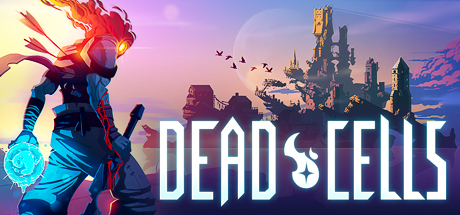
Dead Cells uses this technique on every hit. The white flash, combined with hit stop (freezing the game for 2 to 3 frames), creates that signature crunchy combat feel. Hollow Knight does the same thing but adds a brief knockback animation to sell the impact further.
Tip: Flash duration matters. One frame is too subtle. Five frames feels sluggish. Two to three frames hits the sweet spot for most action games. If you want more depth, check out our guide to combat balance for the broader picture on making hits feel right.
2. Sprite Outline
Outlines make characters pop against busy backgrounds. They’re used for hover states, damage indicators, selection highlights, and general readability.
How it works: The shader samples the texture at small offsets in all four cardinal directions (up, down, left, right). If any neighboring pixel is transparent while the current pixel is also transparent, and at least one neighbor is opaque, draw the outline color there. The result is a colored border around the sprite.
// Godot (canvas_item shader)
shader_type canvas_item;
uniform vec4 outline_color : source_color = vec4(1.0, 1.0, 1.0, 1.0);
uniform float outline_width : hint_range(0.0, 10.0) = 1.0;

void fragment() {
    vec4 tex = texture(TEXTURE, UV);
    vec2 size = TEXTURE_PIXEL_SIZE * outline_width;

    float outline = texture(TEXTURE, UV + vec2(size.x, 0)).a;
    outline += texture(TEXTURE, UV + vec2(-size.x, 0)).a;
    outline += texture(TEXTURE, UV + vec2(0, size.y)).a;
    outline += texture(TEXTURE, UV + vec2(0, -size.y)).a;
    outline = min(outline, 1.0);

    vec4 color = mix(vec4(outline_color.rgb, outline), tex, tex.a);
    COLOR = color;
}
Hollow Knight uses a subtle dark outline on the Knight sprite to separate it from the detailed, sometimes dark backgrounds. Some enemy types get a colored glow outline when they’re about to attack, giving the player a visual cue without breaking the art style.
Tip: For pixel art games, use outline_width = 1.0 and snap to integer pixel sizes. For high-res art, you can go wider. Diagonal sampling (adding four more offset checks at corners) gives smoother outlines at the cost of four extra texture reads.
3. Dissolve Effect
Instead of enemies just blinking out of existence, dissolve them. A noise texture drives the effect, eating away at the sprite pixel by pixel until nothing remains. It looks dramatic and only requires a noise texture and a threshold uniform.
How it works: Sample a noise texture at the sprite’s UV coordinates. Compare the noise value against a threshold uniform that you animate from 0.0 to 1.0. Where the noise value falls below the threshold, discard the pixel. For extra polish, add a glowing edge at the dissolve boundary.
// Godot (canvas_item shader)
shader_type canvas_item;
uniform sampler2D noise_tex;
uniform float threshold : hint_range(0.0, 1.0) = 0.0;
uniform vec4 edge_color : source_color = vec4(1.0, 0.5, 0.0, 1.0);
uniform float edge_width : hint_range(0.0, 0.1) = 0.05;

void fragment() {
    vec4 tex = texture(TEXTURE, UV);
    float noise = texture(noise_tex, UV).r;

    if (noise < threshold) {
        discard;
    }

    float edge = smoothstep(threshold, threshold + edge_width, noise);
    COLOR = mix(edge_color, tex, edge);
    COLOR.a = tex.a;
}
This is sometimes called the “Hello World” of shader effects because it’s simple to implement but looks impressive. Animate the threshold from 0.0 to 1.0 over half a second and you have a satisfying death animation that costs almost nothing in terms of art assets.
Tip: Use different noise textures for different feels. A Perlin noise texture gives organic, flame-like dissolves. A cellular/Voronoi noise gives a crystalline shattering look. A simple gradient from bottom to top gives a “burning up from the feet” effect.
4. Palette Swap / Color Replace
Need the same enemy in three color variants? A damage state that shifts the sprite red? A power-up that tints the player gold? Palette swapping handles all of these without creating new sprite sheets.
How it works: There are two common approaches. The simplest is a color tint: multiply the sprite’s color by a uniform color value. This works for damage flashes and temporary states. The more powerful approach uses a lookup texture (a 1D color ramp) where the sprite’s grayscale value maps to a specific color in the ramp.
// Simple tint approach (Godot)
shader_type canvas_item;
uniform vec4 tint_color : source_color = vec4(1.0, 1.0, 1.0, 1.0);
uniform float tint_amount : hint_range(0.0, 1.0) = 0.0;

void fragment() {
    vec4 tex = texture(TEXTURE, UV);
    COLOR = vec4(mix(tex.rgb, tex.rgb * tint_color.rgb, tint_amount), tex.a);
}
Dead Cells takes this concept further. The game exports animation frames from 3D models along with normal maps, then applies a toon shader to render volume on what appears to be hand-drawn 2D art. Different enemy tiers get different color palettes applied through shaders rather than redrawn sprites, which allowed the small team at Motion Twin to populate the game with dozens of enemy variants efficiently.
Tip: The lookup texture approach is powerful for pixel art. Design your sprites using a limited grayscale palette (4 to 8 shades), then create multiple color ramp textures. Swapping the ramp texture instantly re-skins the entire character. This is how classic NES and SNES games handled palette swaps, and it works just as well today.
5. 2D Water Reflections
A reflective water surface transforms a flat scene into something that feels alive. The effect looks complex but is surprisingly straightforward in 2D.
How it works: Flip the screen texture (or the relevant portion of it) vertically, then apply UV distortion using a noise texture or sine waves to simulate ripples. Tint the reflected image blue or green, reduce its opacity, and render it below the water line.
// Conceptual approach (Godot)
shader_type canvas_item;
uniform float wave_speed = 2.0;
uniform float wave_strength = 0.01;
uniform vec4 water_tint : source_color = vec4(0.2, 0.4, 0.8, 0.5);

void fragment() {
    vec2 uv = SCREEN_UV;
    uv.y = 1.0 - uv.y; // flip vertically
    uv.x += sin(uv.y * 40.0 + TIME * wave_speed) * wave_strength;
    vec4 reflection = texture(SCREEN_TEXTURE, uv);
    COLOR = mix(reflection, water_tint, 0.4);
}
Note: In Godot 4, SCREEN_TEXTURE requires a sampler2D uniform with a hint_screen_texture hint instead of the built-in. The concept remains the same.
Celeste uses subtle water effects throughout its ice cavern levels. The reflections aren’t photorealistic. They’re simple, slightly distorted, and tinted to match the mood of each area. That restraint is part of what makes the effect work so well in a pixel art game.
6. Chromatic Aberration
Separate the red, green, and blue channels of the image by a few pixels and you get the “broken lens” look that screams intensity. Use it on screen transitions, boss entrances, or when the player takes a critical hit.
How it works: Sample the screen texture three times at slightly different UV offsets. Take the red channel from one sample, green from the center, and blue from the third. The offset amount controls the intensity.
// Godot (canvas_item shader, applied to a full-screen ColorRect)
shader_type canvas_item;
uniform float aberration_amount : hint_range(0.0, 0.02) = 0.005;

void fragment() {
    float r = texture(TEXTURE, UV + vec2(aberration_amount, 0)).r;
    float g = texture(TEXTURE, UV).g;
    float b = texture(TEXTURE, UV - vec2(aberration_amount, 0)).b;
    float a = texture(TEXTURE, UV).a;
    COLOR = vec4(r, g, b, a);
}
Tip: A little goes a long way. Keep the offset small (1 to 3 pixels at most) for subtle unease, or crank it up briefly on impact for a dramatic effect. Animate it over time with a sine wave for a pulsing “something is wrong” vibe. Combine it with screen shake for maximum impact.
Where to Go from Here
These six effects cover most of what you need for a polished 2D game. The key insight is that shaders are about feel, not technical flex. A two-line white flash shader does more for your game than a hundred-line procedural nebula generator.
If you’re just getting started with game development, our beginner’s guide to coding your first game covers engine setup and project structure. For choosing between engines, check our Godot vs Unity vs Unreal comparison.
Resources for Learning More
- Godot Shaders (godotshaders.com) has a community library of ready-to-use 2D and 3D shaders
- The Book of Shaders (thebookofshaders.com) is the best free resource for understanding shader math from scratch
- Unity Shader Graph documentation covers node-based shader creation for developers who prefer visual workflows
- The Godot Shaders Bible by Fabrizio Espindola is a comprehensive paid guide for Godot-specific shader development
Start with the white flash. Add it to your player character, test it, and feel the difference. Then work your way through the list. Each one takes an afternoon at most, and together they’ll transform how your game feels.

Written by
Stive Godin
Web dev by profession, gamer by passion. Always chasing the next great game and the next personal best in the gym. Building websites, playing games, and lifting heavy things.